A.L.E.R.T. FAQs
A.L.E.R.T. error: What should I do if I submit an A.L.E.R.T. for the wrong student?
If you realize that there is an error in your A.L.E.R.T. after you have submitted it, email the Manager of Student Retention and Academic Success, Joel Nethercote-Devlin, at netherj@algonquincollege.com.
A.L.E.R.T. status: How do I check on an A.L.E.R.T. I’ve submitted?
Once you have submitted an A.L.E.R.T., you may want to check to see that it was submitted correctly and that the Student Success Specialist (SSS) has acknowledged the submission. You can see this information within the A.L.E.R.T system using the following process:
- Open the A.L.E.R.T. tool from Brightspace.
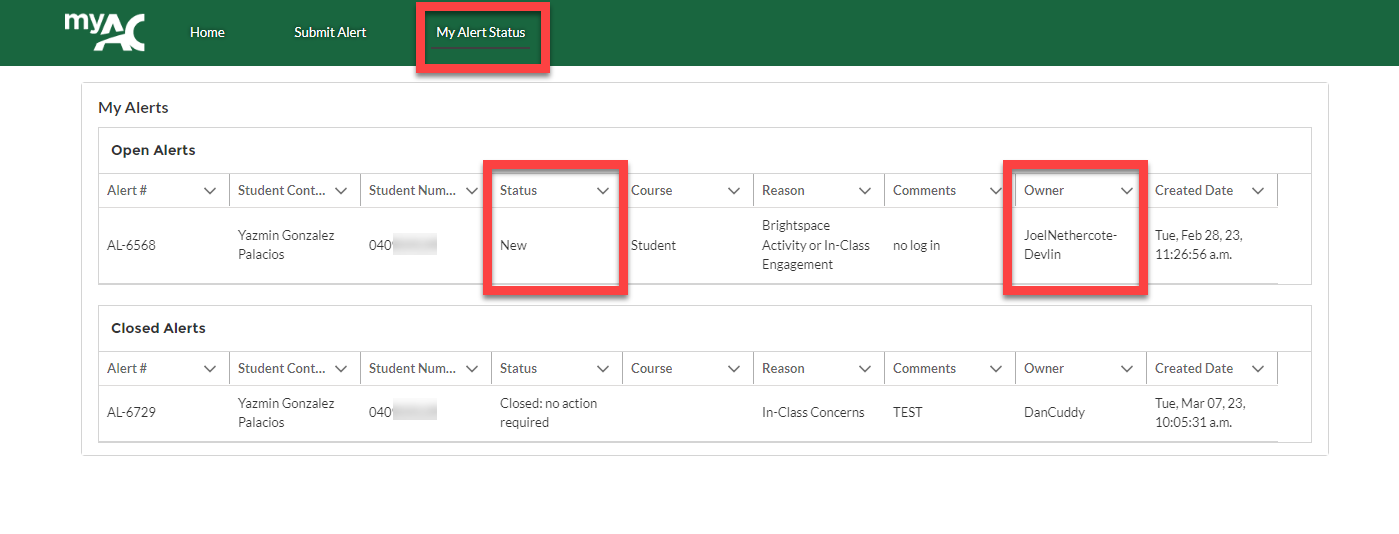
- Click My Alert Status in the top menu bar.
You will now see a dashboard of information on all of your submitted A.L.E.R.T.s. You will be able to see information such as the status of the A.L.E.R.T. and the name of the SSS to whom it was directed.
Courses codes: How do I enter a course in A.L.E.R.T.?
When you submit an A.L.E.R.T., you need to add the course code into the form when prompted. Do not input the name of the course. Section information (e.g. the ‘T’ at the end of ENL1813T) is not required; however, you can add it if you choose.
The course code is seven or eight digits, depending on whether the course has multiple sections. For example:
- CST8300 (seven digits, no course section)
- ENL1813T (eight digits, including a course section)
Follow-up for A.L.E.R.T.: How do I contact the SSS to discuss an A.L.E.R.T.?
If you want to discuss an A.L.E.R.T. that you have submitted in order to provide an update or additional information that you did not include in the A.L.E.R.T. form, you can contact the Student Success Specialist directly.
You can find the name of the Student Success Specialist (SSS) for your program by using the drop-down menu(s) on the Student Success Specialist web page.
Multiple A.L.E.R.T.s: Can I submit a “group” A.L.E.R.T. for multiple students presenting the same at-risk concerns?
In A.L.E.R.T., you can only complete the form for one student at a time. You cannot create one A.L.E.R.T. for a group of students.
A.L.E.R.T.s are tied to individual student numbers. You must enter the student number before viewing the full form.
SSS for A.L.E.R.T.: Who is the Student Success Specialist for my A.L.E.R.T
You can see which Student Success Specialist received your submitted A.L.E.R.T. by checking the My Alert Status tab within the A.L.E.R.T. tool. The Student Success Specialist will appear in the “Owner” column.
You can find the name of the Student Success Specialist (SSS) for your program by using the drop-down menu(s) on the Student Success Specialist web page.
Student information: Besides the Student Success Specialist, who else has access to information submitted in A.L.E.R.T.?
The Student Success Specialists (SSS) are the “gatekeepers” of the student data. They may share the data with other colleagues as needed to support students, such as Academic Advisors, Program Coordinators, or Chairs throughout the semester.
The data collected can also be used to inform efforts to proactively support students through various student success and retention programming and initiatives.
Student information: Besides the Student Success Specialist, who else has access to information submitted in A.L.E.R.T.?
The Student Success Specialists (SSS) are the “gatekeepers” of the student data. They may share the data with other colleagues as needed to support students, such as Academic Advisors, Program Coordinators, or Chairs throughout the semester.
The data collected can also be used to inform efforts to proactively support students through various student success and retention programming and initiatives.
Submitted A.L.E.R.T.: Was my A.L.E.R.T. submitted successfully?
When you finish completing the A.L.E.R.T. form, you will be directed back to the first page of the form. If you see the first page of the form, your form has been submitted to the Student Success Specialist for your program.
You can check the status of the A.L.E.R.T. in the My Alert Status tab.
Tech support: If I have technical issues accessing or using the A.L.E.R.T. form, whom do I contact?
If you have any questions or technical problems using A.L.E.R.T., you can contact the following departments:
- Trouble accessing A.L.E.R.T. (e.g. A.L.E.R.T. isn’t showing up in your Brightspace, or you see an error message): Contact ITS
- Questions about how to use A.L.E.R.T.: Contact the Academic Success Department at academicsuccess@algonquincollege.com