
Lesson 4 – Accessibility: Documents and Videos
It is important to make course information accessible to students. When information is accessible, all learners can perceive it, make sense of it, and use it. Remember, this can reduce students’ reliance on academic accommodations. An easy acronym can help with this: POUR.
To make our course materials perceivable to all students, we need to think about accessibility. Documents, like Word, PowerPoint (PPT), and PDF should be accessible. This means they should be designed so screen readers and other technologies can “read” them properly. There are a few things to consider, like heading structure (i.e., H1, H2, H3), using the styles pane (Word), slide order (PPTs) or reading order (PDFs), colour contrast, font type and size, alternative text for graphics, captions, using tables, etc.
Algonquin’s Centre for Accessible Learning has some resources to help get you started on revising your course documents:
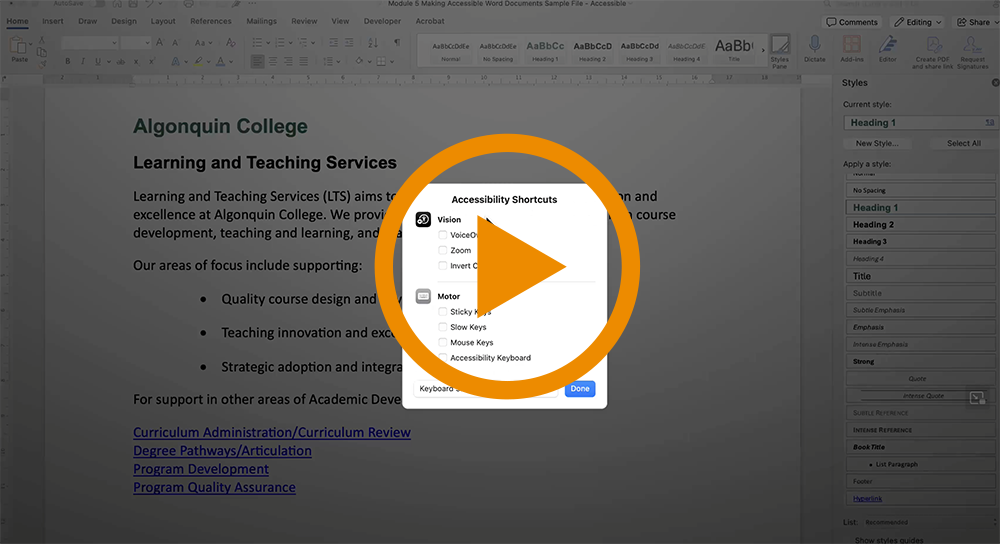
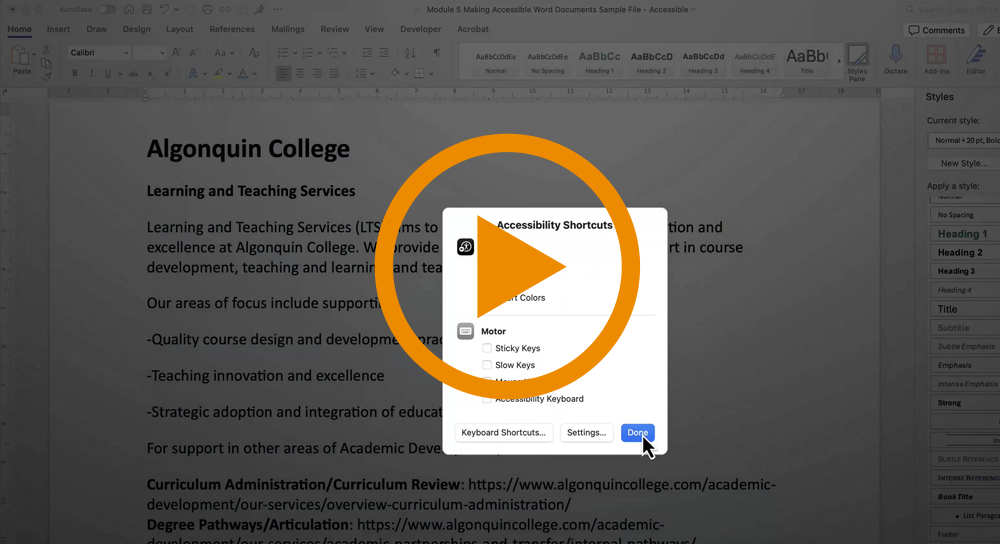
Play the two videos below. The first video shows the user experience when a document has been properly formatted for accessibility. The second video demonstrates the user experience with an inaccessible Word document.
Screen Reading with an Accessible Word Document (Video)
In this video, the screen reader clearly identifies when the reader has entered a list, announces links, and reads the descriptive link text. The document was formatted to be accessible, using Styles in the Styles Pane to “label” text as Headings, paragraphs, lists, hyperlinks, etc.
Making Accessible Word Documents – Example of an Accessible File (Direct Link)
Screen Reading with an Inaccessible Word Document (Video)
In this video, the screen reader does not identify lists, list items, or links. This is because this file was not formatted using the Styles Pane.
Making Accessible Word Documents – Example of an Inaccessible File (Direct Link)
This is a big topic. It can feel overwhelming to try to learn about it all at once. When you feel ready, explore some of the resources below, and then start small.
For example, if you use a lot of PowerPoint presentations in your courses, start there. Make just 1-2 changes for now, and continue to enhance the accessibility of your course materials over the next few semesters. Ensuring there are unique slide titles and that the reading order on each slide is correct will immediately increase the accessibility of your PPT.
Note: It is common to use the term “accessible documents”. However, we cannot ever guarantee that all documents we make will be accessible to everyone and all technologies. So think of this instead as “usable documents” – we aim to make our class materials as usable to all learners as possible.
Reflections and Resources