MS Teams FAQ
Frequently Asked Questions
How to download and Sign in to MS Teams?
Downloading Microsoft Teams
- Download Desktop app
- Web Browser base
- Mobile App: Search the App Store or Google Play to get MS Teams for your mobile device.
Signing In to Microsoft Teams
- Open Microsoft Teams after installation.
- Enter your Algonquin Email and Password with MFA.
Get Started with MS Teams
Watch this short video:
How to Create a Team or Group in Microsoft Teams?
Creating a Team in Microsoft Teams allows you to bring people together for collaboration, file sharing, chatting, and meetings. Here’s how you can create a new Team:
Open Microsoft Teams
- Launch the Microsoft Teams desktop app, mobile app, or go to https://teams.microsoft.com in a web browser.
- Sign in with your Algonquin email and password if you’re not already logged in.
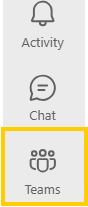
Go to the Teams Tab
- In the left-hand sidebar, click on Teams.
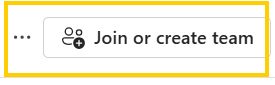
Select “Join or Create a Team”
- Scroll to the bottom of your teams list.
- Click on the “Join or create a team” button.
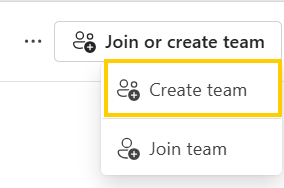
Click “Create Team”
- Choose Create a team.
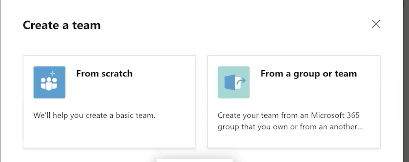
- You’ll be given two options:
- From scratch – Create a brand new team.
- From an existing group – Use an existing Microsoft 365 group to create a team.
Choose a Team Type
- Select the purpose of your team:
- Private – Only team owners can add members.
- Public – Anyone in your organization can join.
Name Your Team
- Enter a Team name (e.g., “ITS Client Care 2025”).
- Optionally, add a description to help others understand the purpose of the team.
Add Members
- Add individuals, groups, or distribution lists from your organization.
- You can assign each person as a Member or Owner.
- Click Skip if you want to add members later.
Notes:
- You can create multiple Channels within a team for specific topics or projects.
- Each team automatically includes Posts, Files, and Wiki tabs for collaboration.
- It’s recommended that groups and teams should have at least two people designated as owners.
Can I make one-on-one calls?
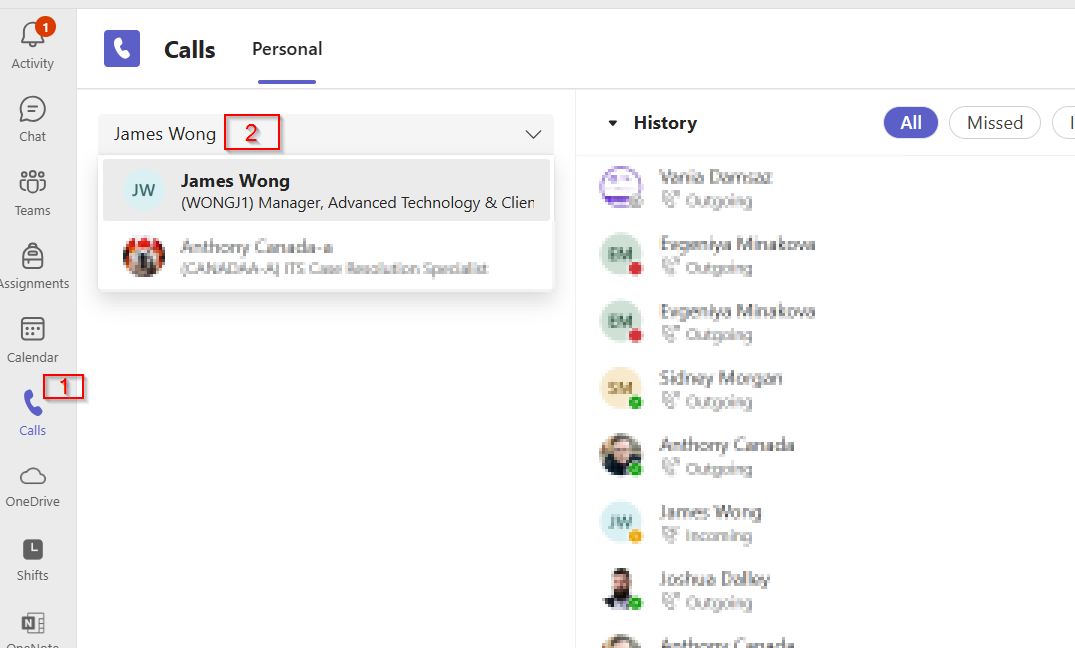
Steps to do a one-on-one calls in MS Teams.
- Go to the Calls tab.
- Search for and select the people you’d like to call.
- Click Call.
How do I schedule a meeting in MS Teams?
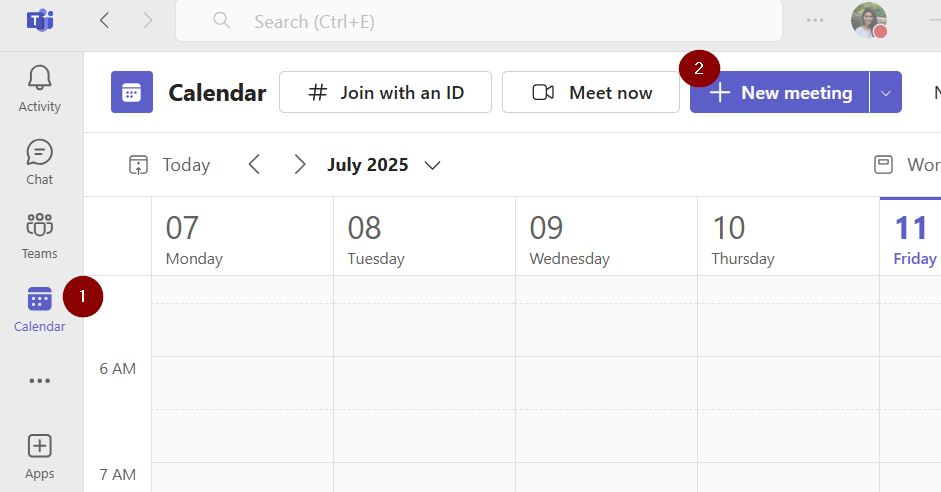
How to Schedule a Meeting
- Go to the Calendar tab.
- Click New Meeting.
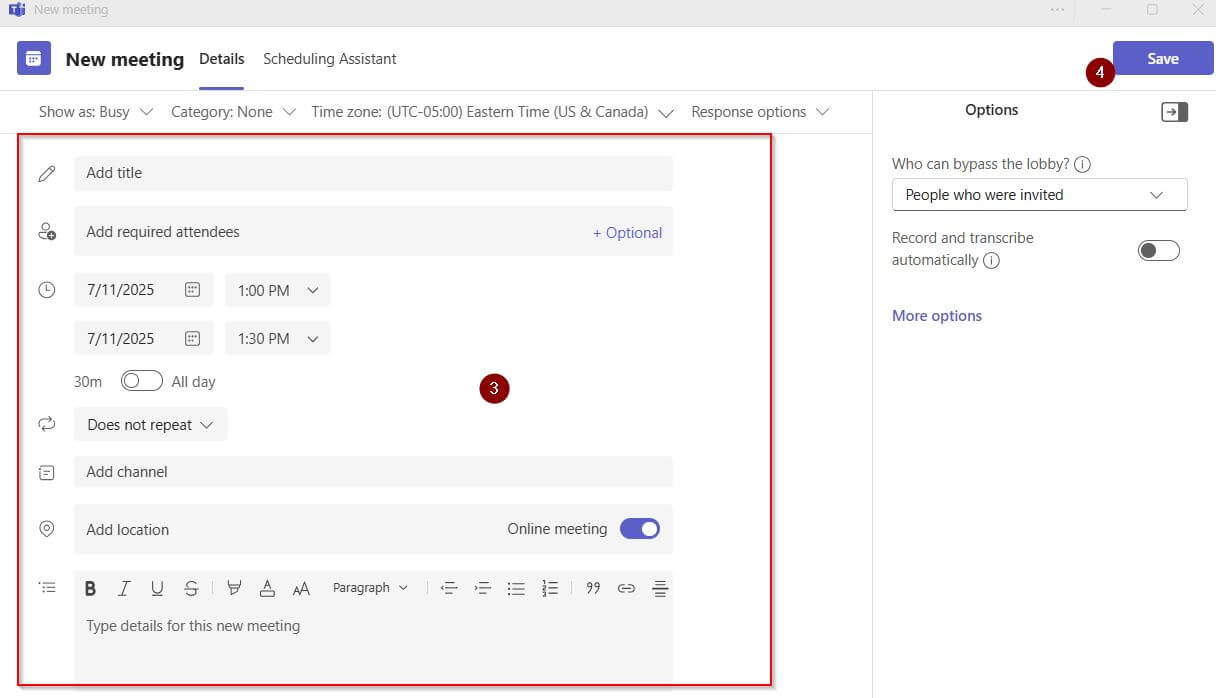
- Specify details of the meeting.
- When done, click Save.
How can I record a Meeting in Teams?
Refer this MS Teams article.
Can I convert all the Zoom meetings to MS Teams automatically?
No, you can’t convert Zoom meetings to Microsoft Teams, it’s not an automatic one-click process.
Steps to Move Zoom Meetings to Microsoft Teams
- Export Zoom Meetings
- Go to your Zoom dashboard.
- Under Meetings, export a list (copy or screenshot).
- Note the following for each:
- Title
- Date & time
- Recurrence (if any)
- Invitees
- Meeting description
- Zoom links
- Create Equivalent Meetings in MS Teams
- Open Outlook or Microsoft Teams Calendar.
- Create new meetings with:
- Same titles, dates, times
- Use the “Teams Meeting” toggle to add a Teams link
- Copy Zoom meeting agenda/notes (if needed)
- Invite the Same Participants
- Copy invitee emails from Zoom meetings into the Teams meetings.
- If recurring, set the correct recurrence pattern.
- Notify Participants
- Send an email or message explaining the change from Zoom to Teams, including the new links.
What College physical spaces or remote options do webinar hosts have to initiate sessions?
Webinars are typically run in conjunction with the AV Events team. For example the Presidents Town Hall. The AV Events team would log in to one of their laptops and start the webinar.
For a single person hosting a webinar they just need to start the webinar on their Laptop/PC.
Will a person without a Zoom license be able to schedule a meeting in a Perth Zoom room?
No. For this reason, the Staff working out of the Perth Campus will keep their Zoom license. (Decision made by management)
Will people be able to join meetings in Perth Zoom rooms without having Zoom licenses themselves?
Yes, the license is not needed for joining a meeting
Teams Tips
Basic Meeting controls in Microsoft Teams
Get a quick introduction to the basic meeting controls available on Teams.
Instructions to Poll attendees during Teams Meeting
Step by Step Instructions
On Desktop or Web
- Go to the Calendar in Teams, find and select the meeting you wish to add polls to.
- Click Chat with participants.
- Click the Add a tab (“+”) button, search for and select Polls, then click Add.
- Click Save a new Polls tab will appear in your meeting.
- Click Create New Poll and choose from the following types:
- Multiple Choice Poll
- Multiple Choice Quiz (you can mark one or multiple correct answers)
- Word Cloud Poll (shows responses as a word cloud; rolling out soon)
- Rating Poll (customizable scale up to 5, stars or numbers)
- Ranking Poll (sortable items, with optional shuffle ordering)
- Add your question and answer options.
- Before launching, choose options to:
- Record respondent names (visible only to organizers/presenters)
- Share aggregated results with respondents
- Allow co-presenters to edit the draft,
- Click Save as draft or Launch now if ready to share (draft indicators will appear on the poll)
- To launch:
- Use the Polls tab and click Launch
- Or click the Polls icon in the meeting window and launch from there
- Attendees will see the poll pop-up responses can be submitted or dismissed.
- View real-time responses in the Polls tab or pane. Active polls show LIVE (red), closed polls display CLOSED (dark gray)
- Use the dropdown next to “View results” to Close, Reopen, Export, or Delete polls as needed .
Supported Devices and Browsers for Microsoft Teams
Microsoft Teams supports a variety of browsers and devices. For the best experience, it’s recommended to use the latest versions of the browsers. For mobile, the MS Teams app is available for both Android and iOS.
Supported Browsers:
- Microsoft Edge: The latest versions are fully supported on Windows, macOS, and Linux.
- Google Chrome: The latest three versions are supported on Windows, macOS, and Linux.
- Firefox: The latest three versions are supported on Windows, macOS, and Linux.
- Safari: The latest two versions are supported on macOS.
- Mobile Browsers: New Teams for Web is not supported on mobile browsers. Mobile users should use the dedicated Teams apps for Android and iOS.
Supported Devices:
- Windows: Windows 11, Windows 10, Windows 8.1, and Windows Server versions are supported.
- macOS: Supported on macOS with the recommended browsers.
- Android: Compatible with Android phones and tablets.
- iOS: Limited to the last two major versions of iOS.
- VDI Environments: New Teams for Web is not supported in VDI environments.
If you have any difficulties, contact ITS Client Care: How can I contact ITS Client Care?
Update MS Teams Desktop App
Teams auto-updates when an update is available and the app is idle.
When an update is available in the Teams desktop app, it’ll appear at the top of your Teams window. You can choose to update Teams instead of waiting for the auto-update during an idle period.
To Update, Select Update > Update and restart Teams.
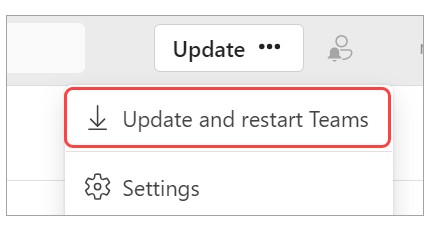
Teams will automatically close and update. If it doesn’t reopen automatically, select and open the updated Teams app on your device.
Note: The web app is always updated. It’s just good like that.
What license will be used for scheduling a meeting from Zoom or Teams room – the room license or personal license?
Personal
Teams Troubleshooting
Microphone isn’t working in Microsoft Teams.
Here’s a step-by-step guide to troubleshoot when your microphone is not working in Microsoft Teams:
Check Microphone Permissions
On Windows:
- Go to Start > Settings > Privacy > Microphone.
- Make sure Microphone access is On.
- Ensure Allow apps to access your microphone is On.
- Scroll down and make sure Microsoft Teams is allowed.
On macOS:
- Go to System Settings > Privacy & Security > Microphone.
- Ensure Microsoft Teams is checked.
Check Teams Device Settings
- Open Microsoft Teams.
- Click on your profile picture > Settings > Devices.
- Under Microphone, select the correct device.
- Speak and check if the volume bar moves under the mic test.
- Click Make a test call to verify.
Check Physical Connection
- If you’re using an external mic/headset, ensure it’s plugged in properly.
- Try unplugging and replugging the mic or using another USB/audio port.
Restart Teams and the Computer
- Fully quit Teams (right-click in the taskbar > Quit) and restart your computer.
Update Drivers and Teams
- Make sure audio drivers are updated (use Device Manager on Windows).
- Ensure Teams is updated: Click on your profile > Check for updates.
Test in Another App
- Try using the mic in Zoom, Voice Recorder, or Google Meet to confirm it’s not a hardware issue.
Reinstall Teams (if nothing else works)
- Uninstall Teams.
- Restart the PC.
- Reinstall Teams from the official Microsoft Teams site.
Not receiving Microsoft Teams notifications
If you’re not receiving Microsoft Teams notifications on your desktop, here are steps to troubleshoot and fix the issue:
Check Teams Notification Settings
- Open Teams.
- Click your profile picture > Settings > Notifications.
- Make sure:
- All notification types (chat, meetings, mentions, etc.) are set to Banner and feed or Banner.
- Missed activity emails and custom settings are enabled where needed.
Check Windows Notification Settings (Windows 10/11)
- Go to Settings > System > Notifications & actions.
- Scroll down and find Microsoft Teams.
- Make sure:
- Notifications are turned ON.
- Banner and sound are enabled.
- Focus Assist is off or set to allow priority notifications.
Check macOS Notification Settings (Mac)
- Go to System Settings > Notifications.
- Find Microsoft Teams.
- Enable Allow notifications and make sure Alerts or Banners are selected.
- Ensure Do Not Disturb is not enabled.
Teams is Running in Background?
- Make sure Teams is open and running.
- If you close Teams, make sure it is set to run in the background:
- Teams > Settings > General > Check “On close, keep the application running”.
Update Teams
- Click your profile in Teams > Check for updates.
- Let it refresh and restart Teams when prompted.
Check for Multiple Devices / Accounts
- If you’re signed into Teams on multiple devices, sometimes notifications go to only one.
- Ensure you’re actively using the desktop app and not muted elsewhere.