Zoom to MS Teams Room Conversion Status
As part of the College’s commitment to financial sustainability, ITS is evaluating current IT solutions to identify cost-saving opportunities. One such initiative involves converting Zoom-enabled rooms into Microsoft Teams Rooms (excluding those at the Perth Campus). The conversion is scheduled to be completed by the end of August, 2025.
| Rooms Converted to Microsoft Teams |
| B286 |
| C021A – International Boardroom |
| C107 |
| C121 – COL Training Room |
| C143 – Labour Relations Boardroom |
| C213 |
| C327 – ITS Boardroom |
| C336 – R3 Boardroom |
| C432 – HR Boardroom |
| C433 – Academic Development Boardroom |
| C539 – Rosser Boardroom |
| CA103 – ACCE Boardroom |
| CA523 |
| G102 – Facilities Boardroom |
| D105 Retail Services |
| E114A – SA Boardroom |
| H200 – Hospitality Boardroom |
| P105 |
| P209 Immersive Lab |
| PB200 |
| T106 – SAT Boardroom |
| T306 |
| X170A |
MS Teams Rooms Quick Start Guide
*Get Started by Turning the TV on. The TV is controlled by a remote or an Extron Control Panel*

Start a New Meeting (meet without previously creating a meeting ID)
•Tap the Meet Now icon from the home screen
•Invite people to your meeting using the search field at the top of the screen
OR
•If your meeting guest is a college employee in the Corporate directory you can tap the Call icon from the home screen and search for them by name to quickly initiate a Teams Video call.

Join a MS Teams Meeting with an ID
• Tap the # (Join with an ID) icon from the home screen
• Select MS Teams as the meeting type and click NEXT
• Type in the meeting ID and Passcode and Click the BLUE Join Teams meeting.

Share Content (Share from a laptop)
• Connect the supplied HDMI cable to your laptop
• Tap the Share icon from the home screen
• Unplug the HDMI cable, or Tap the Stop sharing button from the home screen to stop sharing
Join a Zoom Meeting (Note: you can ONLY JOIN an existing Zoom meeting, NOT start a new one)
• Tap the # (Join with an ID) icon from the home screen
• Select Zoom as the meeting type and click NEXT
• Type in the meeting ID and Passcode and Click the BLUE Join Zoom meeting
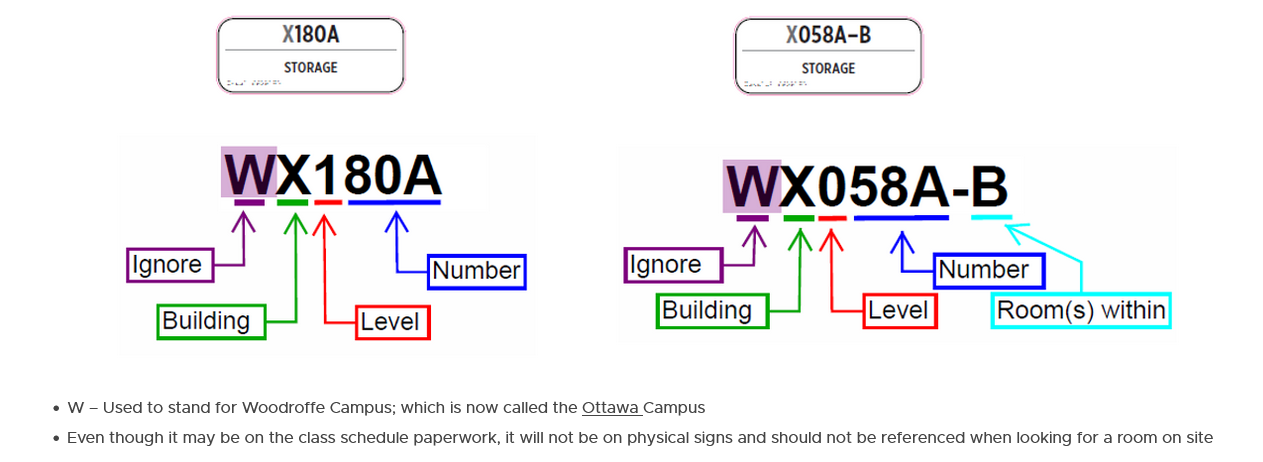
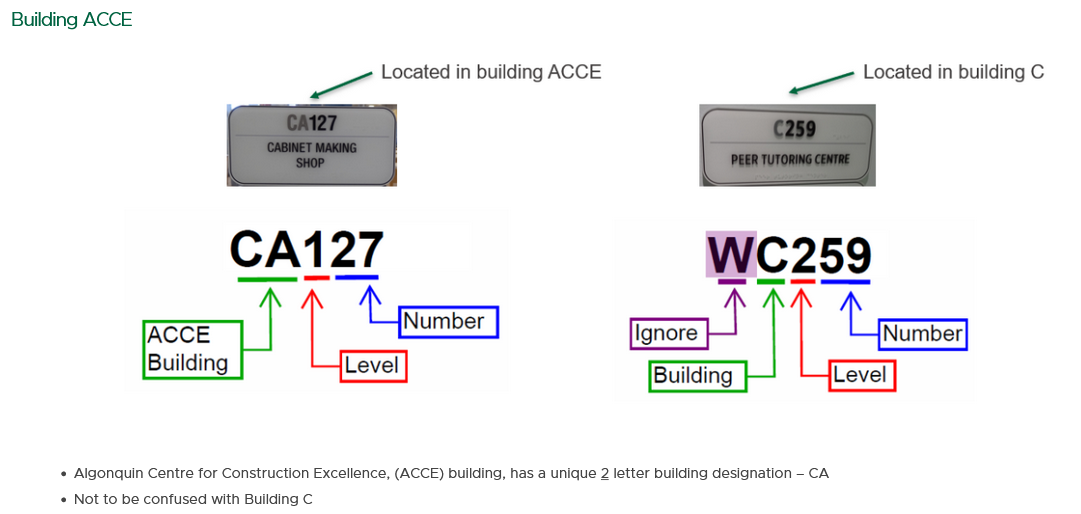
How to Read Ottawa Campus Room Numbers
All Buildings – Except ACCE
For any questions, please contact ITS. Submit Request