
H5P Interactive Learning Activities
Create digital learning activities from right within Brightspace! H5P is an interactive learning tool that allows authors to create and edit interactive videos, presentations, games, quizzes and more.
Access H5P
Use the Algonquin College H5P site to create and edit your activities in a larger workspace outside of Brightspace.
Getting started
You need to first create a basic H5P activity in Brightspace to create your account. After that, you can reset your H5P password using the link.
Quick Start Guide
Follow the steps below to create your first H5P activity and add it to your Brightspace course.
Quick Start: Using H5P in Brightspace
Recommended: Getting Started with H5P Tip Sheet for additional information and tips.
Creating multiple H5P activities? Consider creating them directly in your H5P Account instead of through Brightspace.
1. Open H5P in Brightspace
In Brightspace, go to Content → Existing Activities → H5P Quicklink.
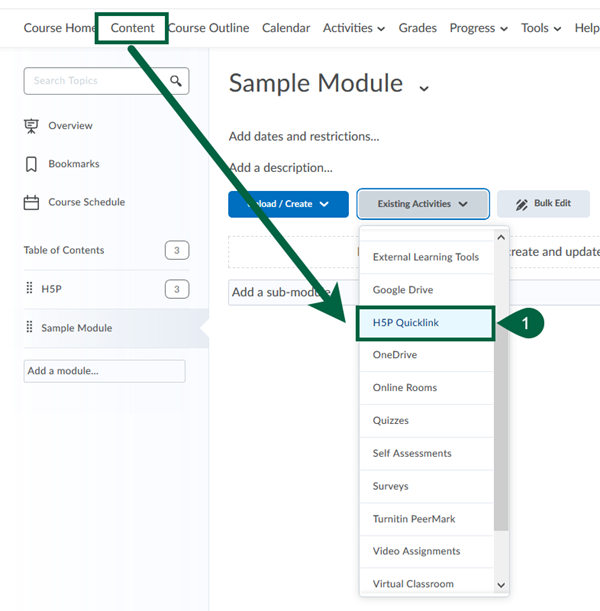
2. Create your H5P activity
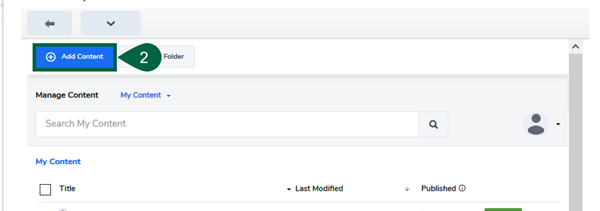
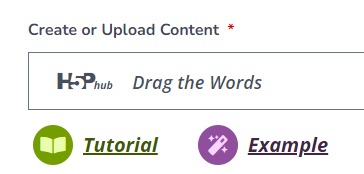
Select Add Content and choose the type of activity you want to create. Your activity will appear in My Content.
H5P also provides a Tutorial for each activity type to help you get started.
3. Configure your grading settings
After creating your activity, scroll to LTI Settings. Under Choose when to send scores to the LMS, select the option that best suits your activity.
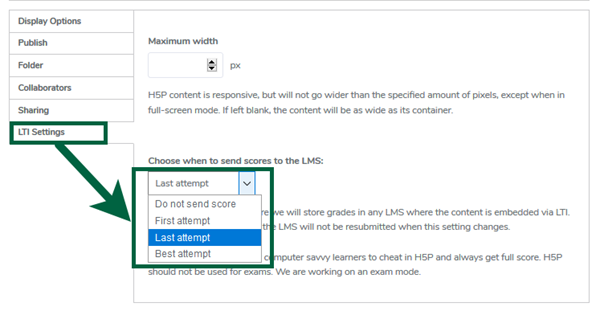
- First Attempt, Last Attempt, or Best Attempt will create a graded activity and a corresponding grade column in Brightspace.
- Do not send score will create an ungraded activity.
If you create a graded activity, you may need to adjust its scoring in Grades after the grade column is created.
4. Add the activity to your course
Click Insert, then Save and Close. Your H5P activity will be added to Brightspace.
Important tips
- If you create a graded H5P activity, complete the activity at least once before expecting its grade column to appear in Grades.
- Each graded H5P activity creates a grade column. Creating many individual graded activities can therefore result in a large number of grade columns.
- Need to remove an H5P grade column? See the H5P FAQs for instructions.
Set Up Your H5P Account
Your H5P account is created when you create your first H5P activity through Brightspace. Once you have created an activity, follow the steps below to access your H5P account directly.
1. Create your first H5P activity
First, create a basic H5P activity through Brightspace → Content → Existing Activities → H5P Quicklink.
You only need to do this once to create your H5P account.
2. Go to the Algonquin H5P site
Once you have created your first activity, go to:
Access Algonquin College’s H5P Site
3. Enter your Algonquin email address
On the login screen, enter your Algonquin College email address and select Next.
4. Reset your password
Because this is your first time accessing the H5P site, select the option to reset your password and follow the instructions provided.
Once your password has been reset, you can use your Algonquin email address and new password to log in to your H5P account directly.
After you’ve set up your account: You can create and manage H5P activities directly through the H5P site, giving you a larger workspace than the H5P window in Brightspace.
Example Activities for Inspiration
Browse the 40+ types of content and learning activities that you can create for your Brightspace course with H5P
Browse H5P activities for teaching and learning.
H5P has released new engagement tools. Check out this blog post for more info.
Frequently Asked Questions
What is H5P?
H5P is a digital activity creator tool that allows teachers to create graded and ungraded interactive learning activities related to course content.
What kind of licensing does Algonquin have for H5P?
Currently, Algonquin College has an unlimited licensing, meaning that any number of faculty can use the tool. In year two, we will evaluate tool usage to determine what Year 2 and Year 3 licensing levels should be.
Can students edit our content? It looks like they can when I use ‘View as Learner’.
Our students cannot edit our H5P content. If we view the course as a student, it looks like there is an edit button. When an actual student logs in, the student does not have an edit button.
Is H5P accessible?
The majority of available activities are accessible. However, please review their inventory for specific information about the accessibility of certain content/activity types.
When I search “H5P” online, two options come up. What is the difference between H5P.com and H5P.org?
H5P.org is the website where all of the activities are demonstrated and documented. H5P.com is where Algonquin College has purchased a license and allows us to integrate H5P activities with Brightspace.
Can I log into my H5p account in order to create activities there rather than via the connection through Brightspace?
Yes. However, you need to first create a basic activity through via H5p in Brightspace. Then, you can go directly to https://algonquin.h5p.com and log into your H5p account from there. Create your first activity in a Brightspace content area of your course by going to: Upload/Create > Create a File > “Insert Stuff” – a litle icon that looks like a media play button. Also, keep in mind that you need to set up a password for H5p by clicking on “Password Reset” on the H5p log in page. Following this sequence is important.
How do I delete the Grade column for my H5p Activity?
1) First, you must delete “associations” to the H5p activity before the Grade book will allow you to delete the column.
- In the Content Area where you have your H5p activity, click on the drop down and click on Delete Topic.
- Select the second option: “Permanently delete both the topic from Content and the associated file or activity from the course”.
- The second option must be selected to enable you to select the activity column in the grade book for deletion.
Another way to delete activity associations is:
- Tools > Course Admin > External Learning Tools.
- Click the LTI Advantage tab.
- Browse for the name of the activity.
- Beside the activity link, click the chevron (upside-down bracket) to see menu.
- Click on Delete.
- Click on Grades (on the course tool bar), then Manage Grades.
- Click More Actions.
- Click on the More Actions button to select Delete.
- Click the checkbox for the column/activity you wish to delete and
- Click on Delete.
Is there a file upload limit in H5p?
Yes. The maximum file size for upload within an H5p activity is 2 GB.