Workday app in Microsoft Teams – desktop and mobile
Providing convenience and time savings, the Workday app in Microsoft Teams lets you view certain Workday information and action some tasks without leaving the Teams environment. Direct links are included if tasks can only be completed within the Workday platform.
Teams chat notifications related to time off requests and expense claims are issued to promote the visibility of these tasks. A Teams chat lets your manager know you have submitted a request. Another is sent to you when your manager has completed it.
To get connected, click below for the desktop and mobile instructions, then explore the app to discover its features including:
- View pay summary
- View time off balances
- Request time off
- Approve time off
- View your Workday inbox
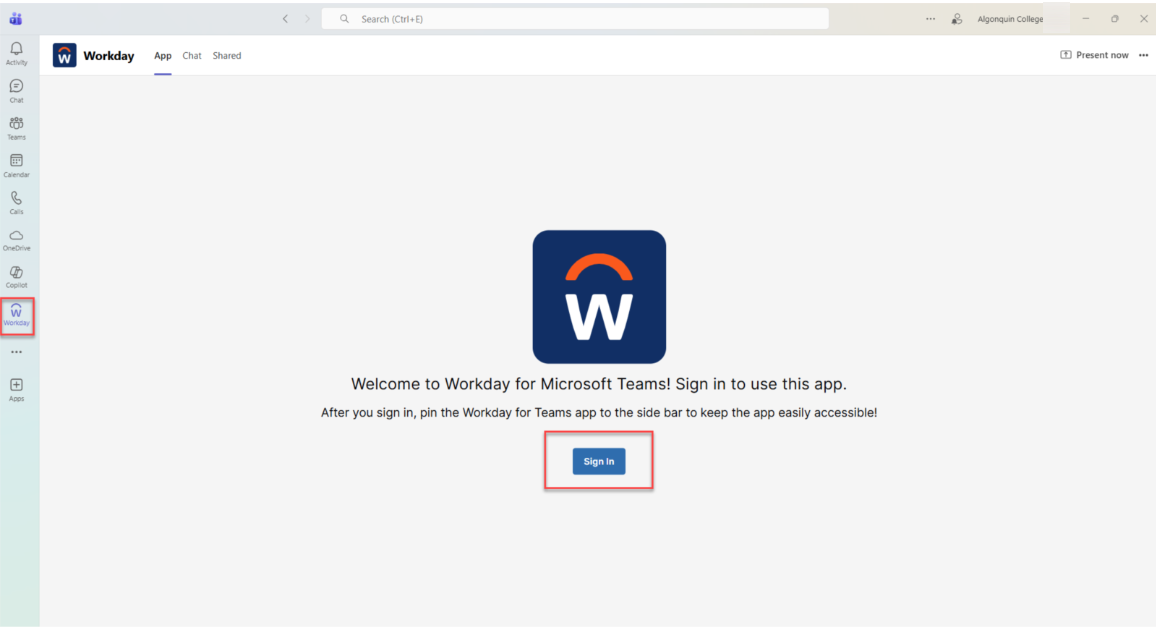
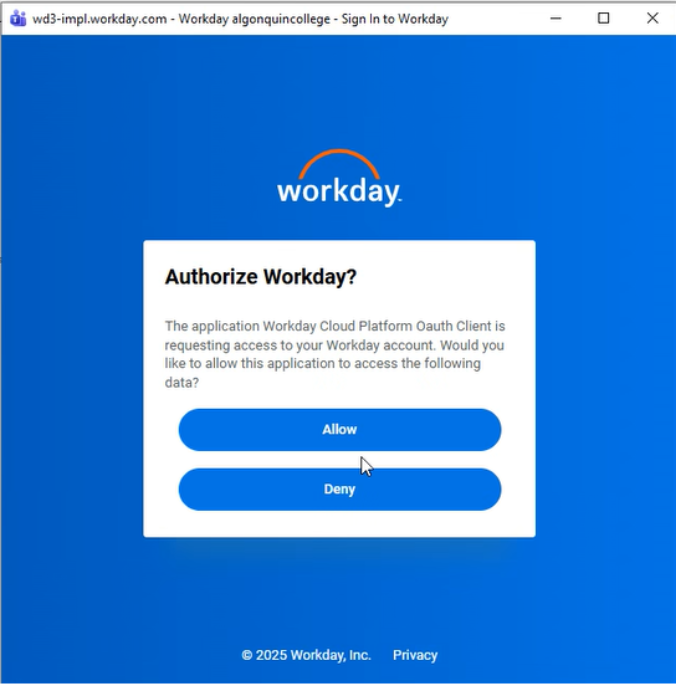
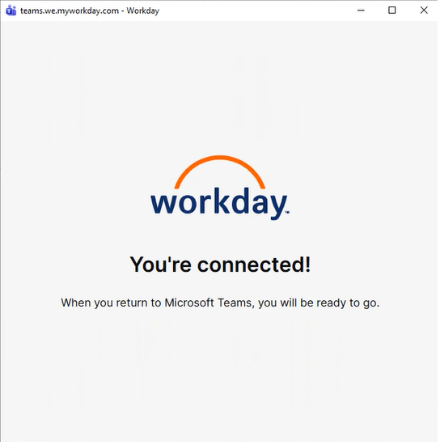
Note: If you do not see the Workday app, you may need to add it manually by selecting the + Apps button, then searching “Workday”. 3. You may see this screen while the connection is being established for the first time. Select “Allow” to continue. 4. Once completed, you will see the “You’re connected!” screen. Close the screen to return to the Workday app. Open Microsoft Teams on your mobile device. At the bottom of the screen: How to access the Workday app in Microsoft Teams – desktop
How to access the Workday app in Microsoft Teams – mobile
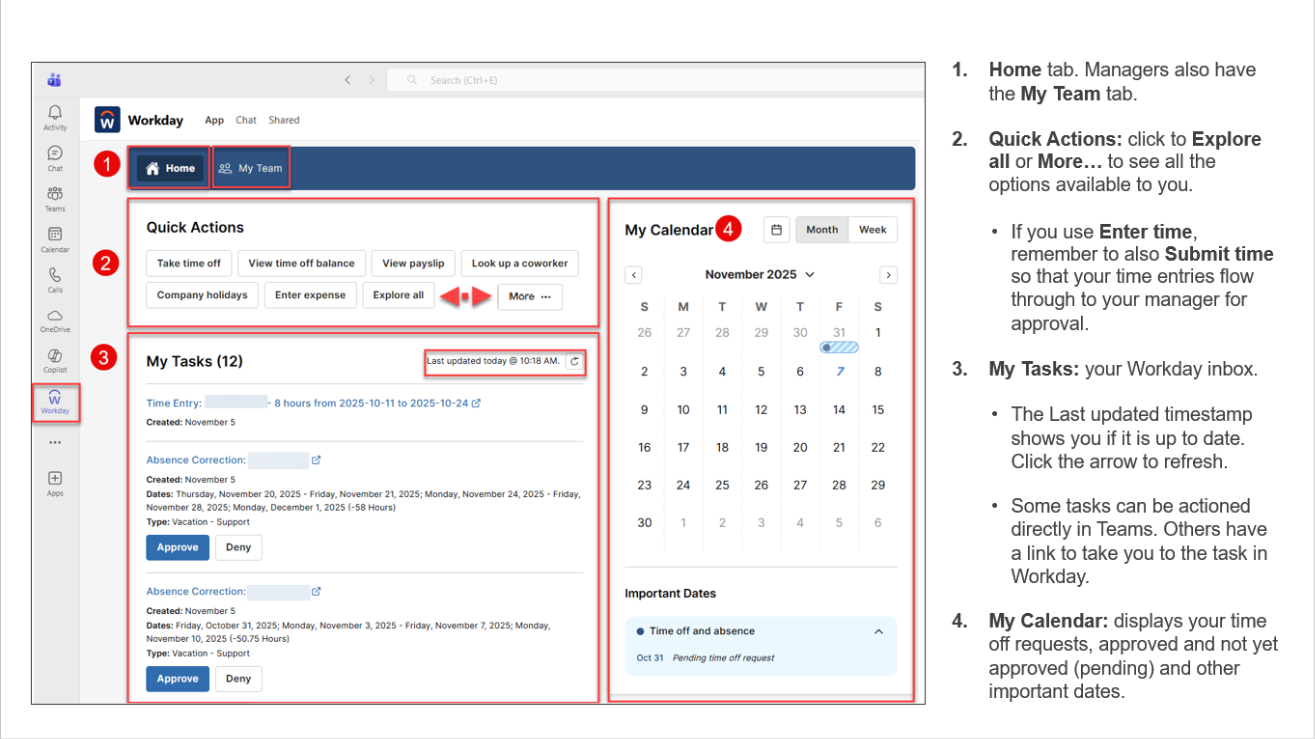
Navigating the Workday app in Microsoft Teams
FAQs
Yes. Follow the step-by-step prompts given by the chatbot. If the bot isn’t interpreting your request correctly, you may need to click “Edit or add details”, then “Hours per day”. Yes, if you have one position. If you have multiple positions, continue to enter and submit your time worked through the Workday platform which can be accessed through the app by clicking “My Tasks in Workday”. No. The functions cannot be set by an individual. No. Notifications cannot be set by an individual. If you need help or don’t feel that you are getting the most out of this feature, email workdaysupport@algonquincollege.com. The Resources page includes links to Workday user guides and videos. The Getting Started in Workday user guide is a good place to start. Can I enter a time off request for part of a day?
Can I enter and submit time worked through the app?
Can I hide or disable any specific functionality?
Can I turn off the Teams chat notifications?
Who can I contact for help?